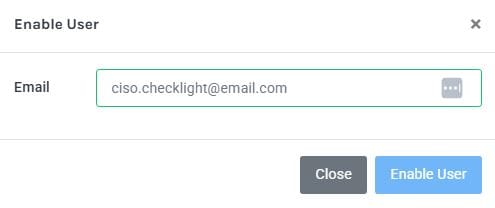
If your user account has an Admin access level ( see step 3 from Creating a Checklight User account) you may Enable and Disable a user account.
To Disable a user is to cut that user's access to the Checklight portal.
Instructions
To Disable a user account:
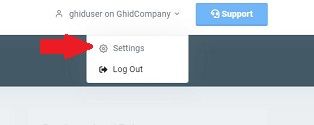
- Click on your user name/email at the upper right of the dashboard then choose Settings.
2. From the Settings view, select the User Management section. Use the switch button to disable a user account.

To Enable a user account:
Switch the button to Enabled and fill in the email field.