Here are the uninstall instructions for Windows, Linux and MAC systems:
Windows
There are two uninstall methods:
From the CheckLight console:
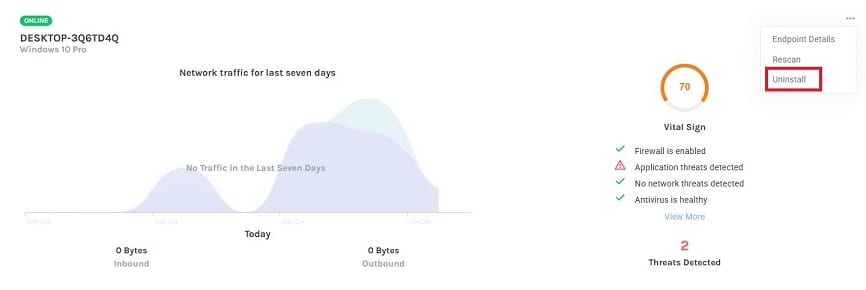
To uninstall ThreatResponder agent from the CheckLight console:
- Go to the Endpoints tab and find your endpoint.

- Click on the Actions button and select Uninstall.
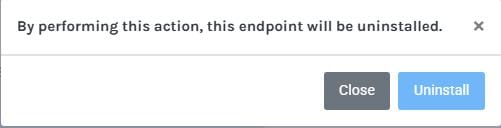
- Confirm uninstall
From Control Panel:
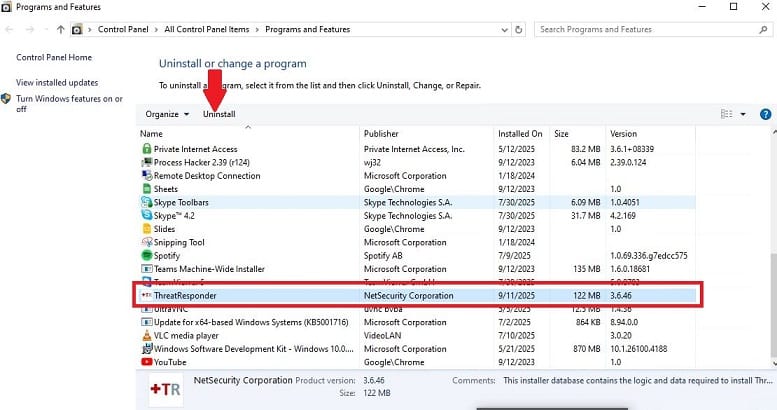
T0 uninstall ThreatResponder from Control Panel:
- On your endpoint, go to Control Panel (All Control Panel Items\Programs and Features), select ThreatResponder and click on Uninstall
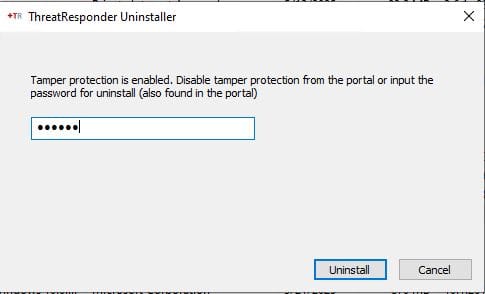
- If Tamper Protection is enabled (see Tamper Protection article for more information) you will be prompted for the uninstall password. You can find the password in the Endpoint Details, under the Tamper Protection section.
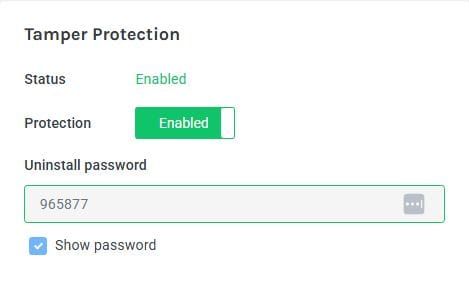
Add the uninstall password in the ThreatResponder Uninstaller window and click on Uninstall.
Linux
The Linux packages include removal scripts that stop the services, send an uninstall notification, and clean up the ThreatResponder directories after the binaries exit.
Debian, Ubuntu, and Kali (.deb)
Remove the package, then purge its remaining configuration and state:
sudo apt remove threatresponder
sudo dpkg --purge threatresponder
RHEL, CentOS, Fedora, and Amazon Linux (.rpm)
Use one of the following commands, according to the package manager available on your system. Each triggers the package cleanup scripts.
With DNF:
sudo dnf remove threatresponderWith YUM:
sudo yum remove threatresponderWith RPM:
sudo rpm -e threatresponderFor installation, registration, and service diagnostics, see Installing CheckLight on Linux.
Mac
To uninstall ThreatResponder from a Mac system, run the following command from the terminal:
sudo /Applications/NetSecurity/ThreatResponder/uninstall.sh